
OpenAR 1.0
Author: Anonymous student

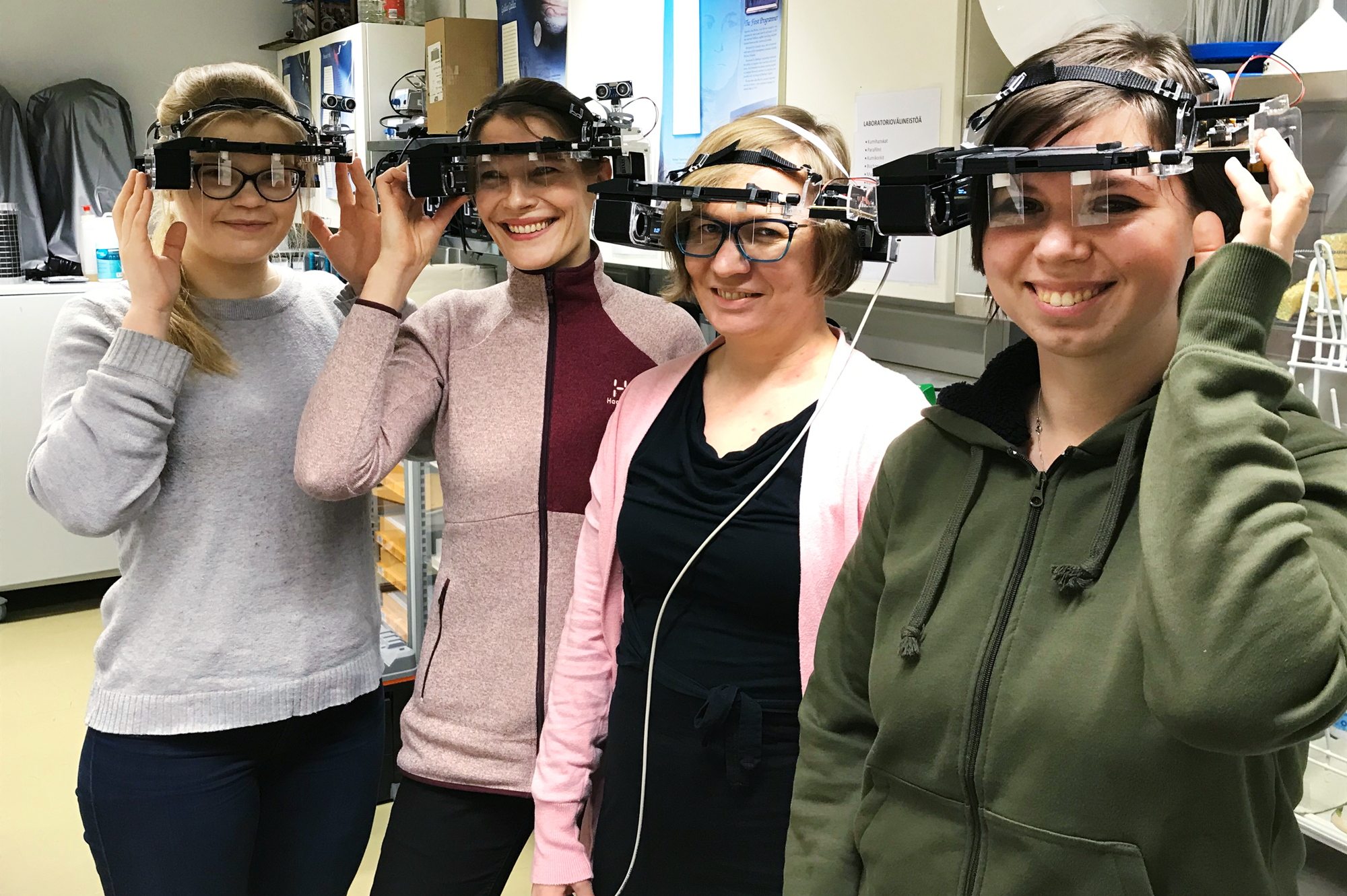
When I was a kid, I was a big fan of MacGyver. I didn’t really think such people existed until I started my physics studies here at the University of Eastern Finland. I ran into all sorts of self-built gadgets that were meant to demonstrate a wide range of physics phenomena. When I took a course in practical electronics, it turned out our teacher was the guy who had built all of them. This time he had designed DIY augmented reality (AR) glasses combining components that just happened to be available. Our task was to construct them.
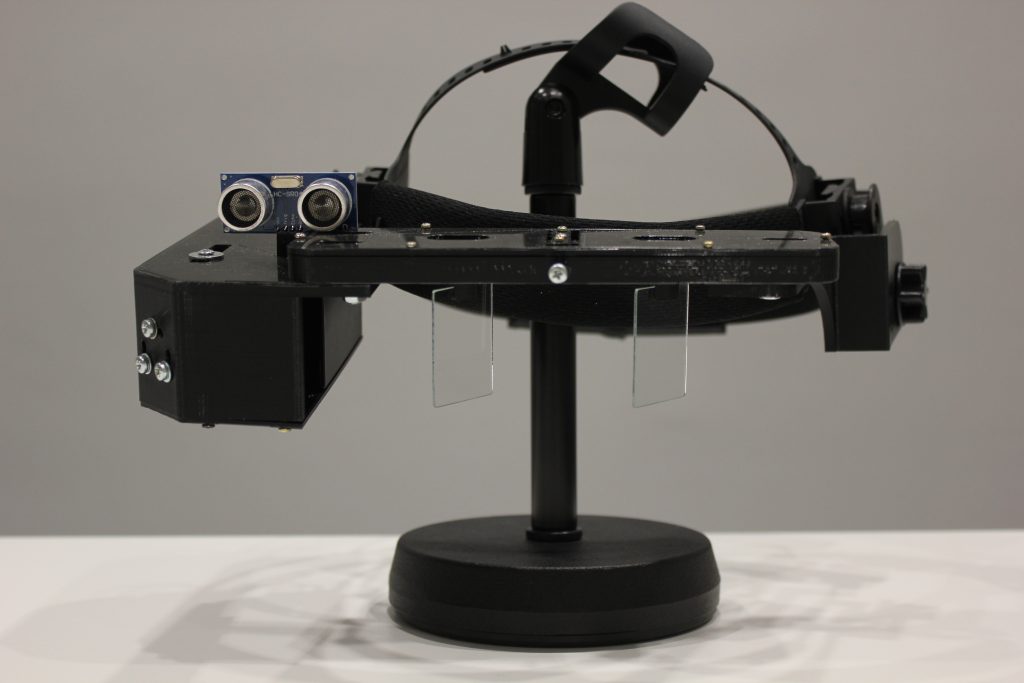
Basically, in order to create your own AR glasses, you need a way to reflect an image that brings new information into your field of view without blocking your real-world view. Of course, there are many ways to implement this. Since it was relatively easy to build, I’ll show you how we built such a device. We even did it using low-cost components.
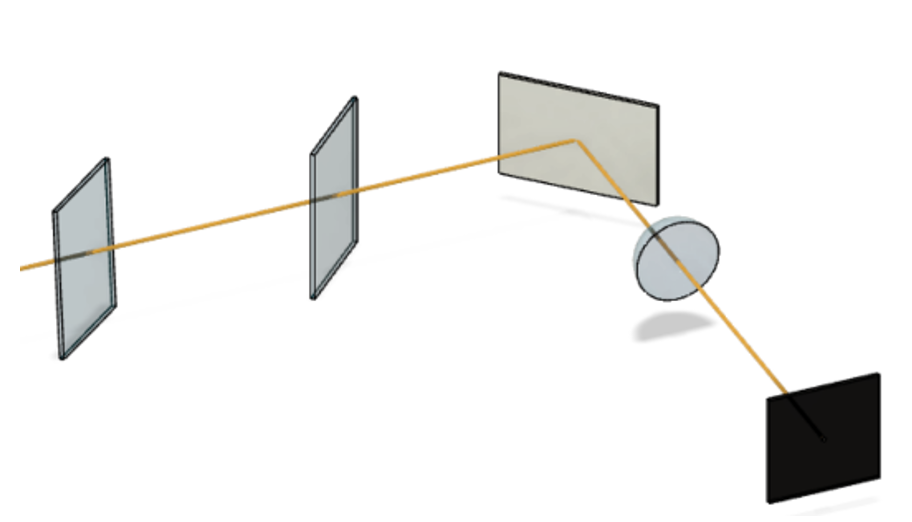
The image that the eyes receive comes from a small OLED display and goes through a lens. Light first reflects from a mirror and then partially reflects from glass plates into the viewer’s eyes. This works much in the same way as a red dot sight, with the exception that it is built for both eyes. The distance of the image we see can be adjusted by changing the angle of the glass plates.
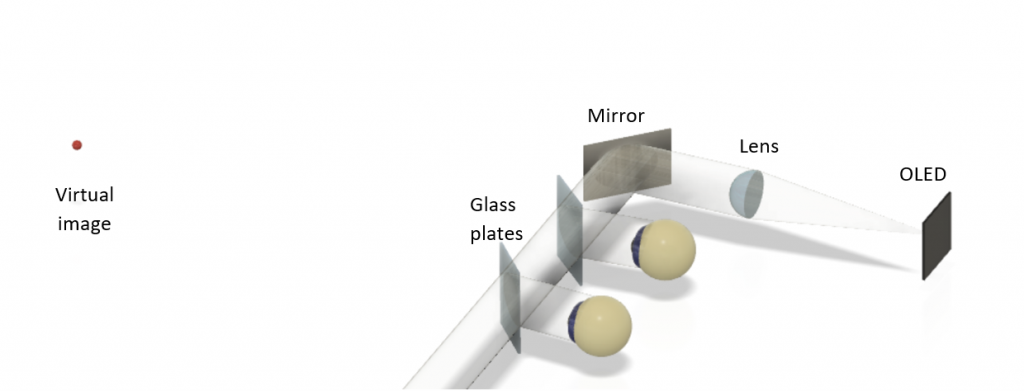
Learn more about how light travels from the OLED display to the eyes.
We are actually tricking the brain a bit. When we look at an object that is close to us, our eyes have to converge, and the closer the object is, the greater the convergence. When we tilt the glass plates, our eyes have to readjust to focus on the virtual image. Our brain interprets the distance of the image from the amount of movement the eyes have to make, and it has no idea that the image is not really there.
Learn more about human 3D vision.
To call this augmented reality, we couldn’t just add any random image. We needed to add information, so we added sensors to collect data. One prototype we made was a pair of glasses with an ultrasonic sensor to measure distances. I will present this project here, but don’t let it limit your imagination. With some changes, you can use other sensors, or Bluetooth, phone apps, etc.
How to do it
In order to build the OpenAR 1.0 glasses, you need a set of components listed below. There are also links to some shops where you can buy them (just to show the kind of parts I mean). The following links will take you to shops such as Thorlabs, Thermo Fisher Scientific, Partco, Arduino Store, Distrelec, and Biltema.
- Lens: We used a 3D printed plano-convex lens with a focal length of 100 mm and a diameter of 25 mm. Plano-convex means that the lens has one spherical surface and one flat surface. Plano-convex lenses are very suitable for collimating light. For example, you may find an equivalent lens from Thorlabs.
- Mirror: We used a first-surface mirror we made with a vacuum evaporator. A first-surface mirror is a type of mirror with the reflecting surface on the first layer. If you cannot find a reasonably priced first-surface mirror, or you do not happen to have an extra vacuum evaporator lying around, just use a regular mirror. Either a small one, about 30 mm x 30 mm, or a cut piece from a larger one. In case you insist on using a first-surface mirror, you may again find one from Thorlabs.
- Reflecting plates: Clear glass or plastic plates. We used microscope slides cut in half, about 26 mm x 38 mm x 1 mm in size. Nearly any transparent plane plate large enough to cover your eyes will do the trick; however, the amount of light reflecting varies with different materials.
- Headset: This was a bit of a headache. The purpose of the headset is to keep the optical axis aligned and to attach all the components firmly around your head, making you look cool and smart (I’m the one who didn’t think it would show in the picture that the device wasn’t actually turned on). So, let your imagination fly. We built our second-generation headset using 3D-printed parts and attached them to the headband from a helmet. If you don’t know anyone who has a 3D printer, check if there is a library near you where it is possible to make 3D prints.
- OLED display: We used a 0.96” 128×64 Joy-IT OLED SBC-OLED01 with an SSD1306 controller.
- Ultrasonic sensor: We used an ultrasonic distance sensor PCB 5V HC-SR04.
- Arduino Nano microcontroller
- Jumper wires, female
- Small parts: For example, 2.0 mm x 6.0 mm screws, 2.0 mm x 5.0 mm screws, M3 nuts, M3 washers, M3x8–15 bolts, an M3 tap, a 2.5 mm drill bit, glue, sandpaper, etc.
- Mini-B USB cable and a small USB power bank (you probably already have one).
1. Program the Arduino Nano
For programming, you will need the Arduino IDE. If you are not interested in writing your own program, this code should work with an ultrasonic sensor. Just copy the code, paste it into the Arduino IDE, and upload it to your Arduino. If you haven’t done this before, here is how it’s done.
There are plenty of tutorials and ready-built programs for Arduino on the internet. If you are not into ultrasonic sensors but just want to try getting an image to display on these AR glasses, you can find some examples from Random Nerd Tutorials. Optical illusion animations look cool with this system; for example, this 3D cube animation.
2. Connect the Ultrasonic Sensor and the Display to Arduino
Once the program has been uploaded to the Arduino, you can connect the display and the ultrasonic sensor to the Arduino with female jumper wires.
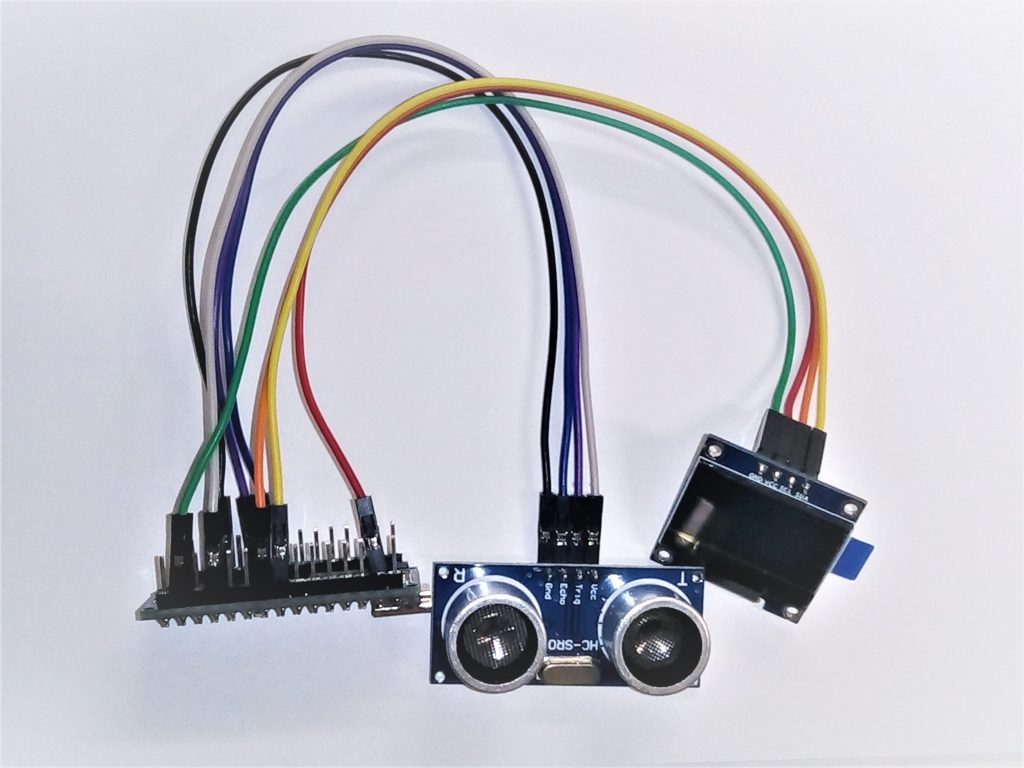
OLED display to Arduino Nano:
- SDA to A4
- SCL to A5
- VCC to 3V3
- GND to GND
Ultrasonic sensor to Arduino Nano:
- VCC to 5V
- Trig to D3
- Echo to D4
- Gnd to GND
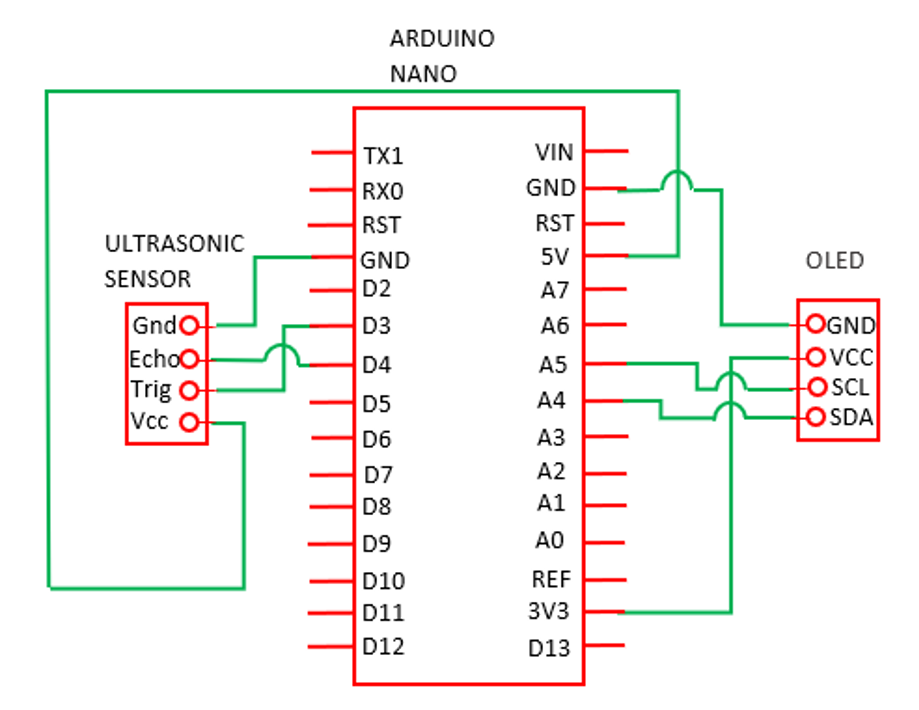
Now, simply connect the Arduino to the power bank. You should now see the distance measured by the ultrasonic sensor on the screen of the OLED display.
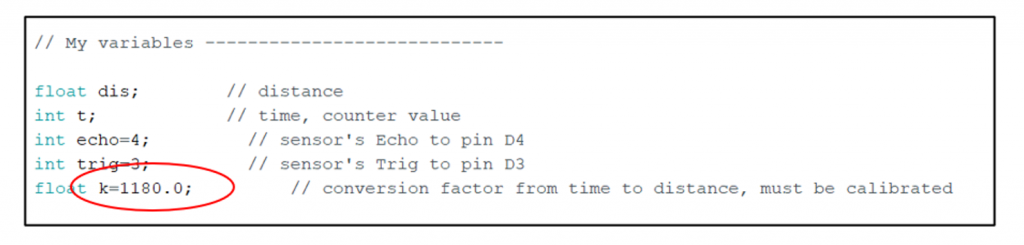
You may check the calibration of the ultrasonic sensor by placing it 1 meter from a wall. If the displayed measurement is not correct, you will have to adjust the conversion factor (k) in your Arduino Nano program in the “My variables” section. One easy way to do this is to reprogram your Arduino by setting the conversion factor to 1000.0. If, for example, the display then gives a reading of 1.18 m, the conversion factor should be adjusted to 1180.0. Upload the updated program to your Arduino, and it should now give you the correct distance.
3. Build the Headset
The main things to consider when building your headset:
- You want to get the display, the lens, the mirror, and the glass plates all on the same optical axis. This means that there should be a straight line passing from the center of the display through the center of the lens to the center of the mirror, and then a straight line from the center of the mirror to the centers of both glass plates. To help make the task easier, it is good to have some mechanism to adjust the tilt of the mirror.
- The distance between the display and the lens must be the same as the focal length of the lens, or at least very close. You might want to build a mounting structure that allows you to adjust the distance between these components.
- There are three glass plate adjustments you need to make. First, you need to set the distance between the glass plates according to the distance between your pupils so that you can see at least something with both eyes. Second, you need to rotate the glass plates so that your brain can combine the images from the left and right eyes into one image. Third, you will need a very fine rotational adjustment so that you may adjust the position of the image you see. Note that when the left glass plate rotates clockwise, the right glass plate must rotate counterclockwise, and vice versa.
- Then, of course, you will need a supporting structure to attach the whole system firmly around your head. We used a helmet headband we found at a local hardware store.
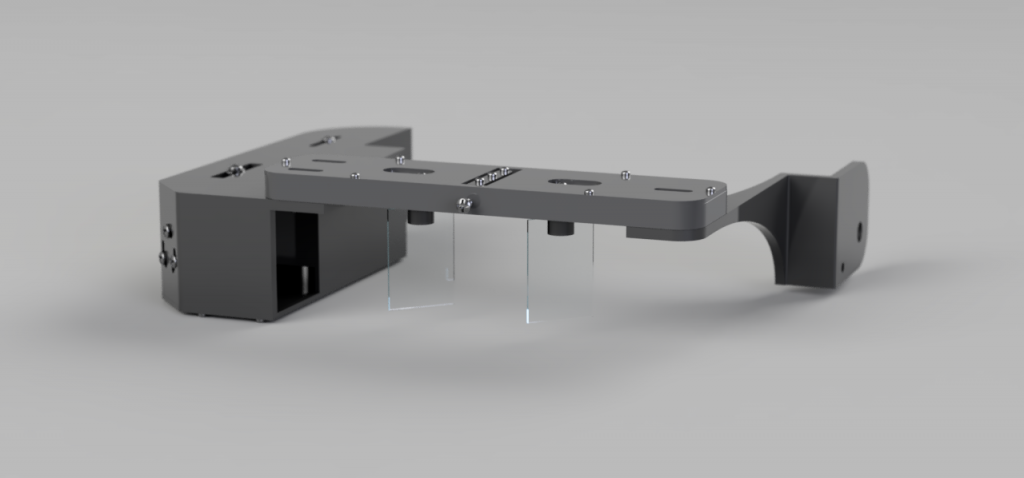
Feel free to use these files, but please note that they are designed specifically for our headband. You might have to modify the design quite a bit.